
Admin
Team & Users
Partner Admins add staff accounts with roles so the team can create cases without sharing the admin password.
Partner Admin only. Navigation: Header → Users
URL: /dymora/users
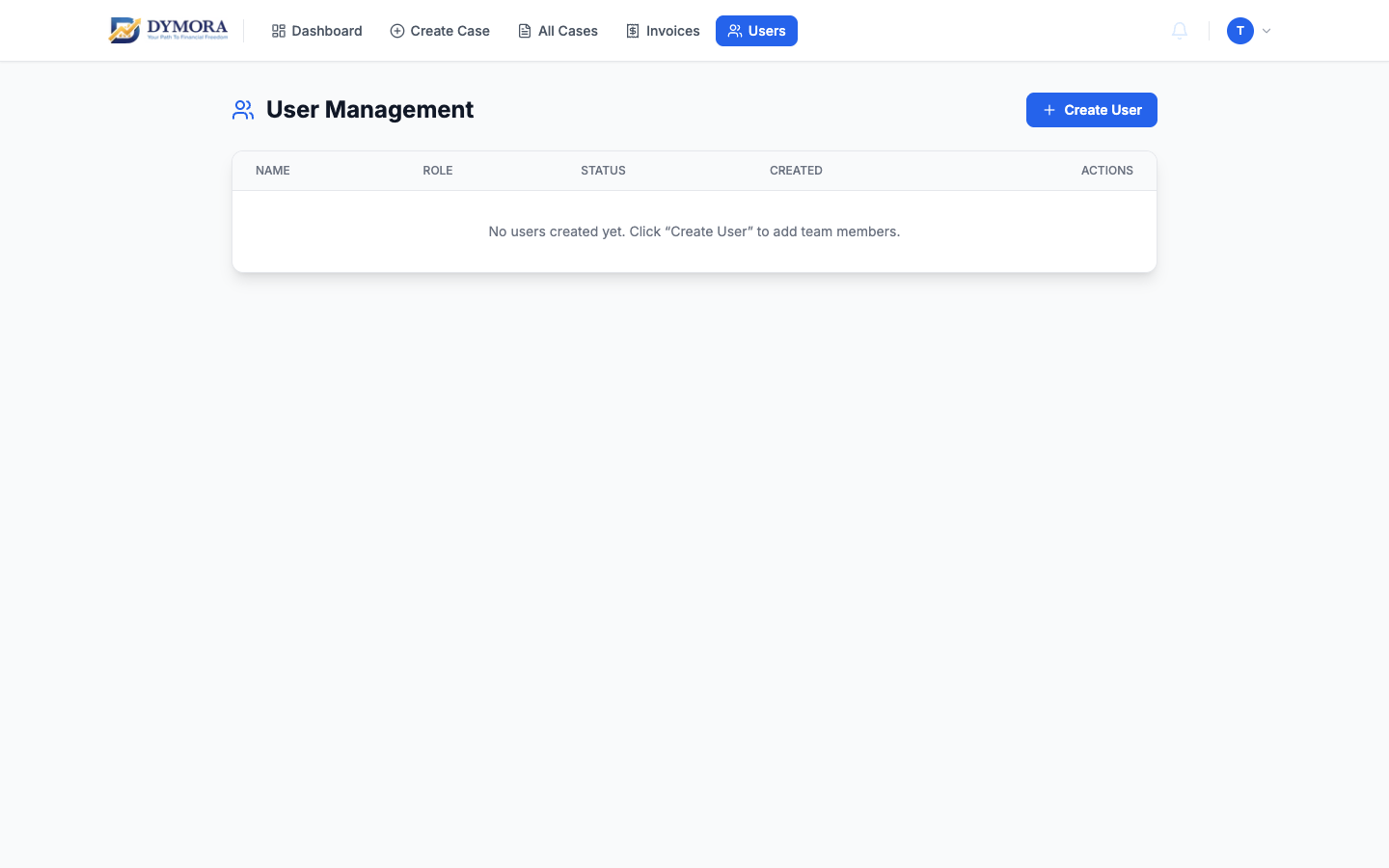
Team & Users page
Roles you can assign
| Role | Purpose |
|---|---|
| Admin | Full portal (one primary admin from registration) |
| Manager | Cases, in-house lifecycle, policies |
| Executive | Create cases; sees own cases only |
| Viewer | Read-only across organisation cases |
Full permissions breakdown: Roles & Permissions
Users list
Each user row shows:
- Name, email, phone
- Role badge
- Active / inactive status
- Last login (if available)
Step-by-step: Add a team member
- 1Go to Users.
- 2Click Add user / Create user.
- 3Enter name, email, optional phone.
- 4Select role (Manager, Executive, or Viewer).
- 5Set a temporary password or follow your onboarding email flow.
- 6Save.
- 7Share credentials securely with the team member.
- 8They sign in at /partners/signin with their email.
Deactivate & reactivate
Deactivate
- 1Find the user in the list.
- 2Toggle Active off (or click Deactivate).
- 3They can no longer sign in; historical cases remain.
Reactivate
- 1Toggle Active on for the user.
- 2They can sign in again with the same email.
Best practices
- One Admin per channel; use Manager for day-to-day ops.
- Use Executive for field sales staff.
- Use Viewer for auditors or senior management who only monitor pipeline.
- Deactivate users the same day they leave the organisation.