
Dashboard
Your home screen after sign-in. It shows pipeline health, cases that need attention, and shortcuts to create or review cases.
URL: /dymora/dashboard · Navigation: Header → Dashboard
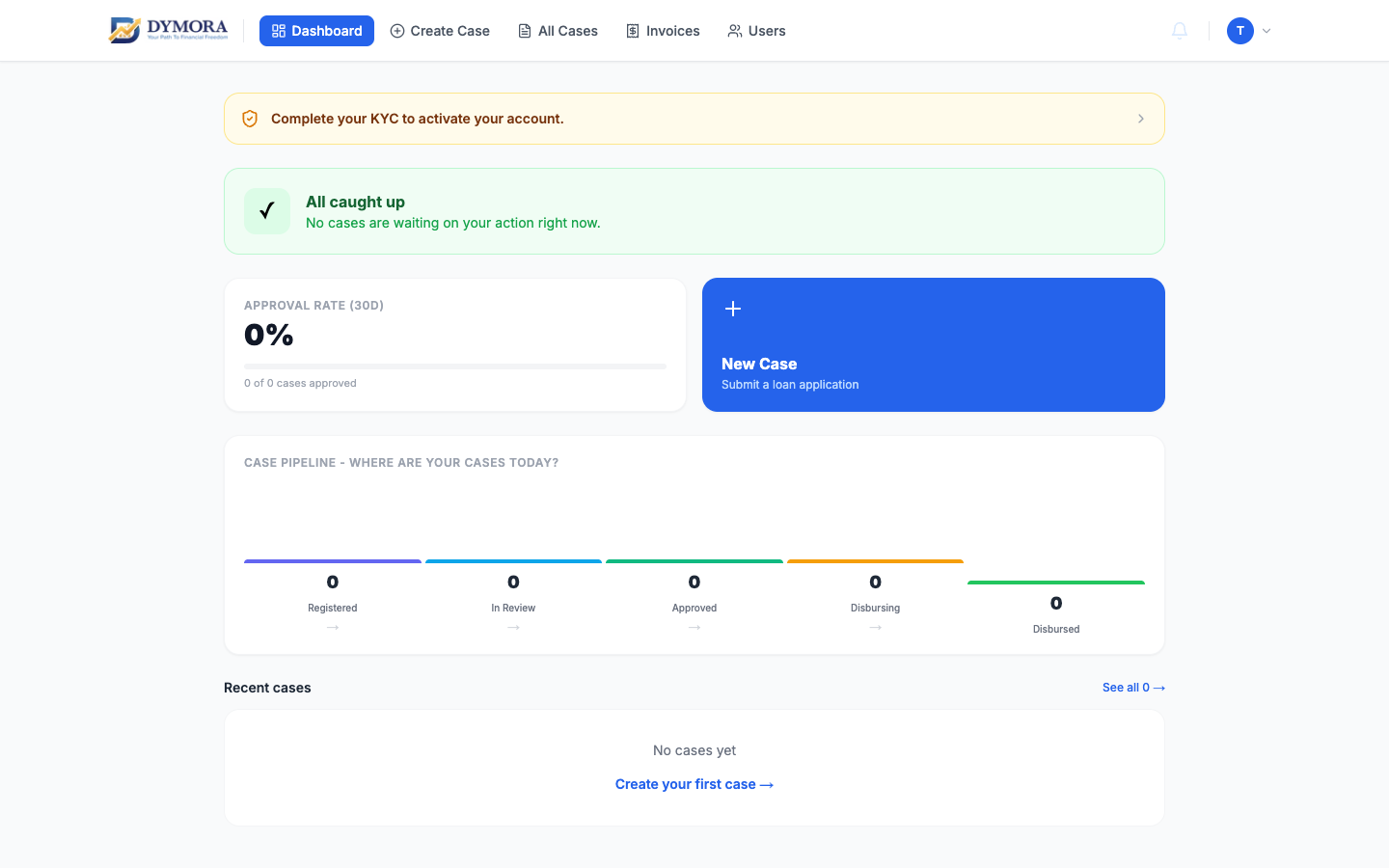
Dashboard - pipeline overview
Header & navigation
The Dymora header appears on all authenticated pages. Your channel name and reference ID appear in the header.
| Nav item | Who sees it |
|---|---|
| Dashboard | Everyone |
| Create Case | Admin, Manager, Executive |
| All Cases | Everyone (scope varies by role) |
| Invoices | Admin only |
| Policies | Admin & Manager (if in-house enabled) |
| Users | Admin only |
| Notifications (bell) | Everyone |
| Profile menu → Settings | Everyone |
| Logout | Everyone |
Dashboard sections
KYC banner
Shown when KYC is not approved. Click to open the KYC page and complete verification.
Action needed
Highlights stuck cases - Relook requests, CIBIL not pulled, or cases stuck in review. Each row shows applicant name, case ID, status, and suggested next action. Click a row to open the case.
Pipeline funnel
Counts cases by stage: Registered → In Review → Approved → Disbursing → Disbursed. Click a stage to filter All Cases.
Performance snapshot
Cases created in last 30 days vs previous 30 days, and approval rate trend.
Recent cases
Last five cases with status and quick link to detail.
Create case
Visible if your role can create cases - opens the Create Case wizard.
Step-by-step: Daily check-in
- 1Sign in → land on Dashboard.
- 2Resolve KYC banner if present.
- 3Review Action needed - open each case and complete the listed step.
- 4Scan Pipeline funnel for bottlenecks.
- 5Use Create Case for new applications.
- 6Check the notification bell for updates.