
Getting Started
Sign In & Password
Sign in with your admin or sub-user email and password. Password setup and reset use dedicated auth pages.
Sign in
URL: /partners/signin
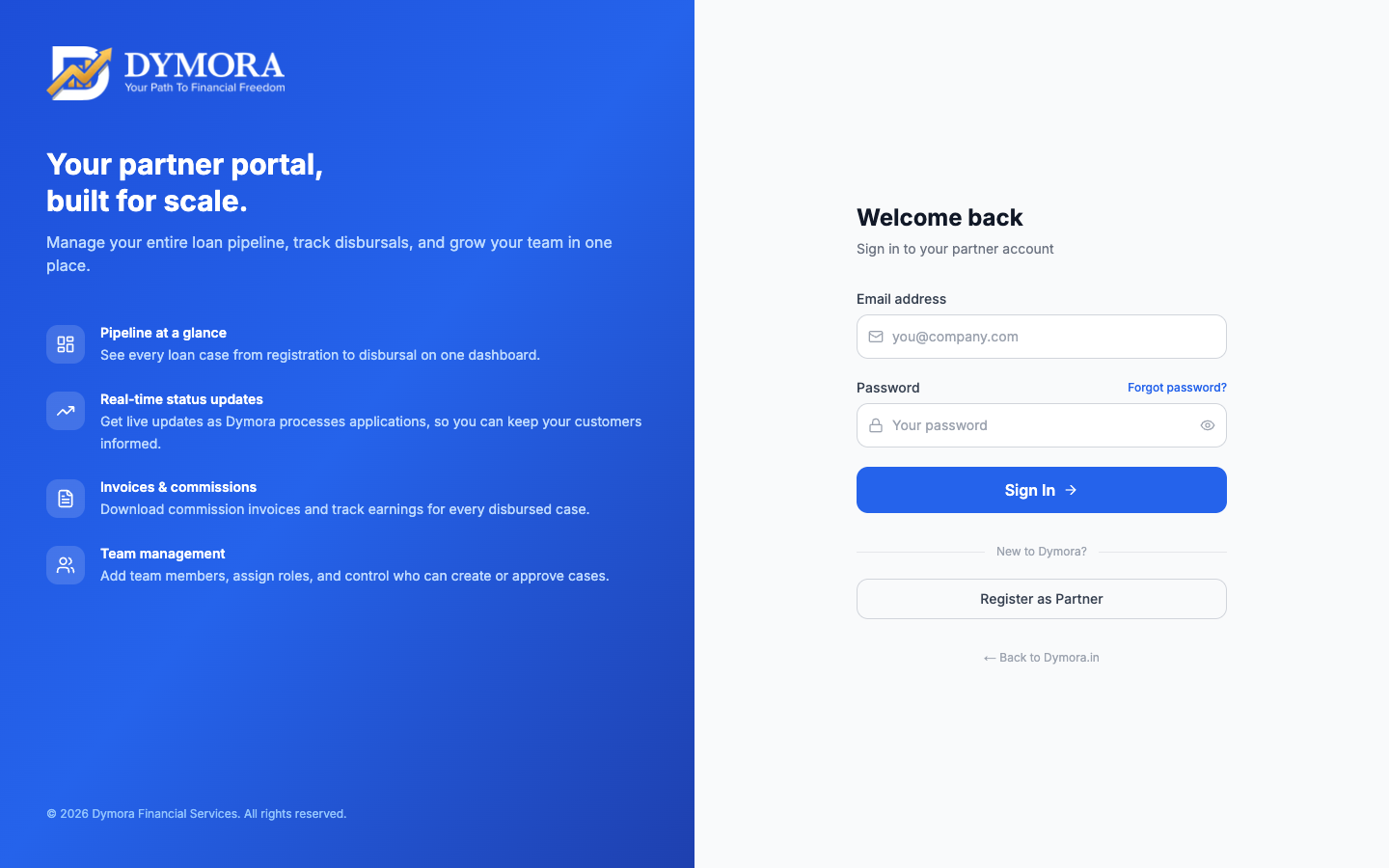
Sign in page
Step-by-step: Sign in
- 1Open Partner Login from the landing page or go to /partners/signin.
- 2Enter your email and password.
- 3Optional: enable Remember me on your device.
- 4Click Sign in.
- 5On success, you are redirected to the Dashboard (/dymora/dashboard).
- 6If KYC is incomplete, you may see a banner on the dashboard - complete KYC from there.
Left panel (desktop): The sign-in page highlights portal capabilities - pipeline dashboard, real-time status updates, invoices & commissions, and team management.
Forgot password
URL: /partners/forgot-password
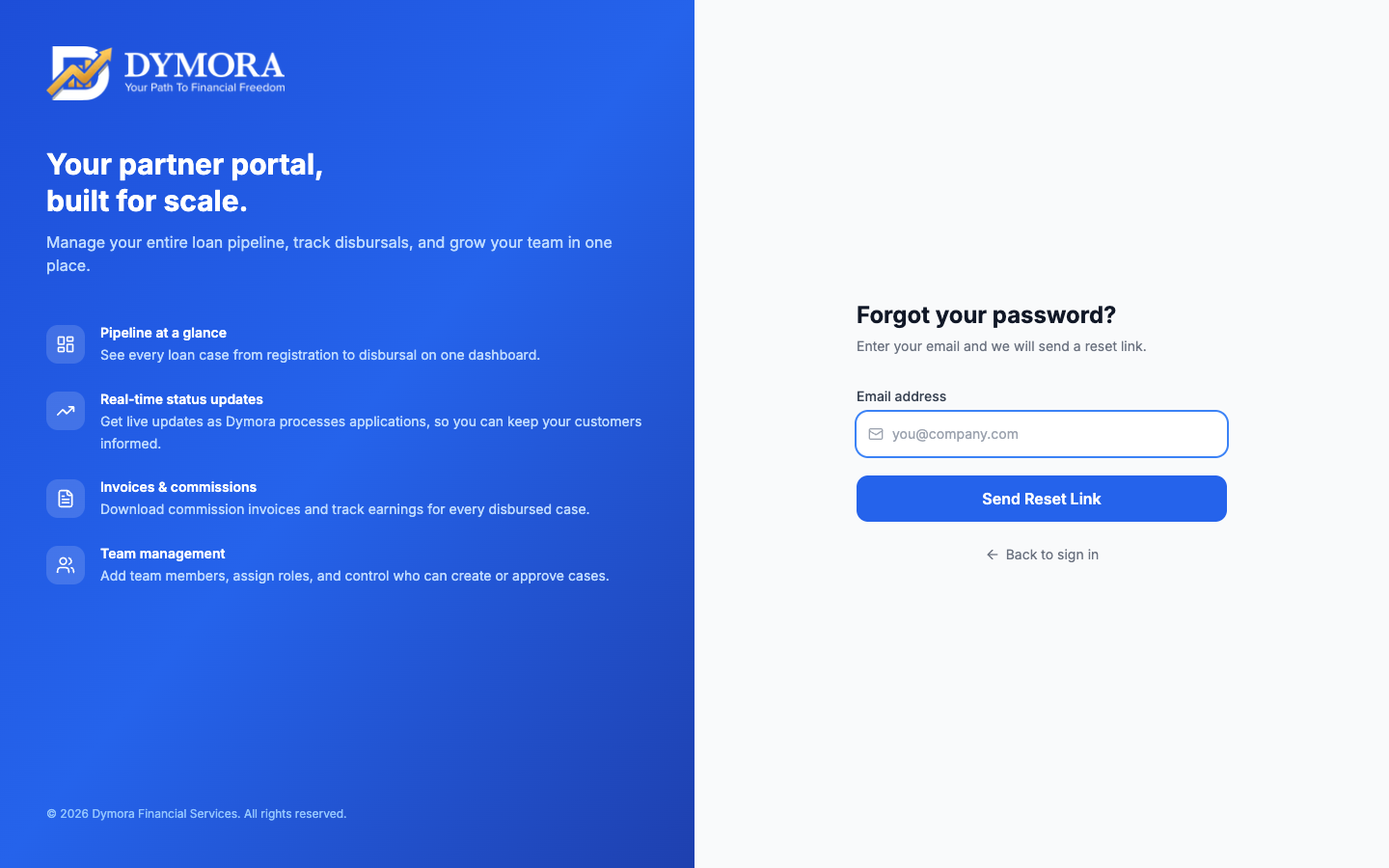
Forgot password page
Step-by-step: Reset password
- 1On the sign-in page, click Forgot password?
- 2Enter the email registered with your partner account.
- 3Submit the form.
- 4Check email for a reset link (opens /auth/reset-password with a token).
- 5Enter and confirm a new password.
- 6Return to Sign in and log in with the new password.
First-time password setup
URL: /auth/setup-password?token=... (link sent by email after registration)
Step-by-step: Set initial password
- 1Open the link from the partner setup email.
- 2Enter a strong password and confirm it.
- 3Submit; you are redirected to sign in.
- 4Sign in and complete KYC.
Sign out
- 1Click your profile avatar (top right in the portal header).
- 2Choose Logout.
- 3You return to the sign-in page; your session token is cleared from the browser.
Security tips
- Do not share admin credentials - use Team & Users to create staff accounts.
- Use a unique password; rotate if a team member leaves.
- Sign out on shared computers.