
Getting Started
Partner Landing & Registration
Learn about the partner program on the public landing page and submit a Partner Registration form. After registration, Dymora reviews your application and sends a password setup email.
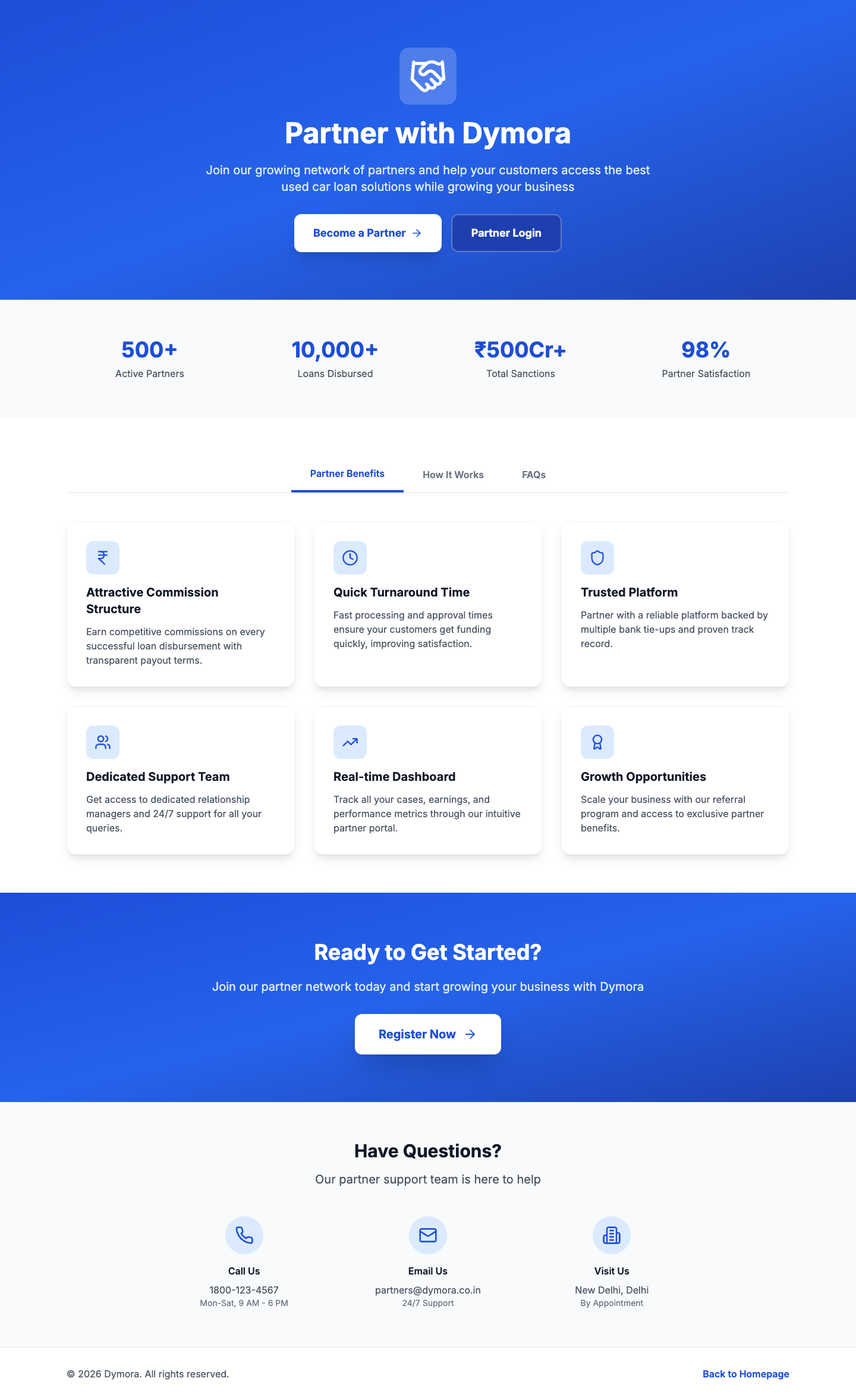
Partner landing page - /
Partner landing page
The landing page is your entry point to the Dymora partner ecosystem. It includes:
- Hero with Become a Partner and Partner Login CTAs
- Statistics - active partners, loan disbursals, and sanctions
- Tabs: Benefits, How it works, FAQs
- Contact details for support
Step-by-step: Landing to registration
- 1Open the partner portal in your browser.
- 2Scroll through benefits and FAQs if needed.
- 3Click Become a Partner (or go directly to /dymora/signup).
- 4Complete the registration form (see below).
Partner registration
URL: /dymora/signup
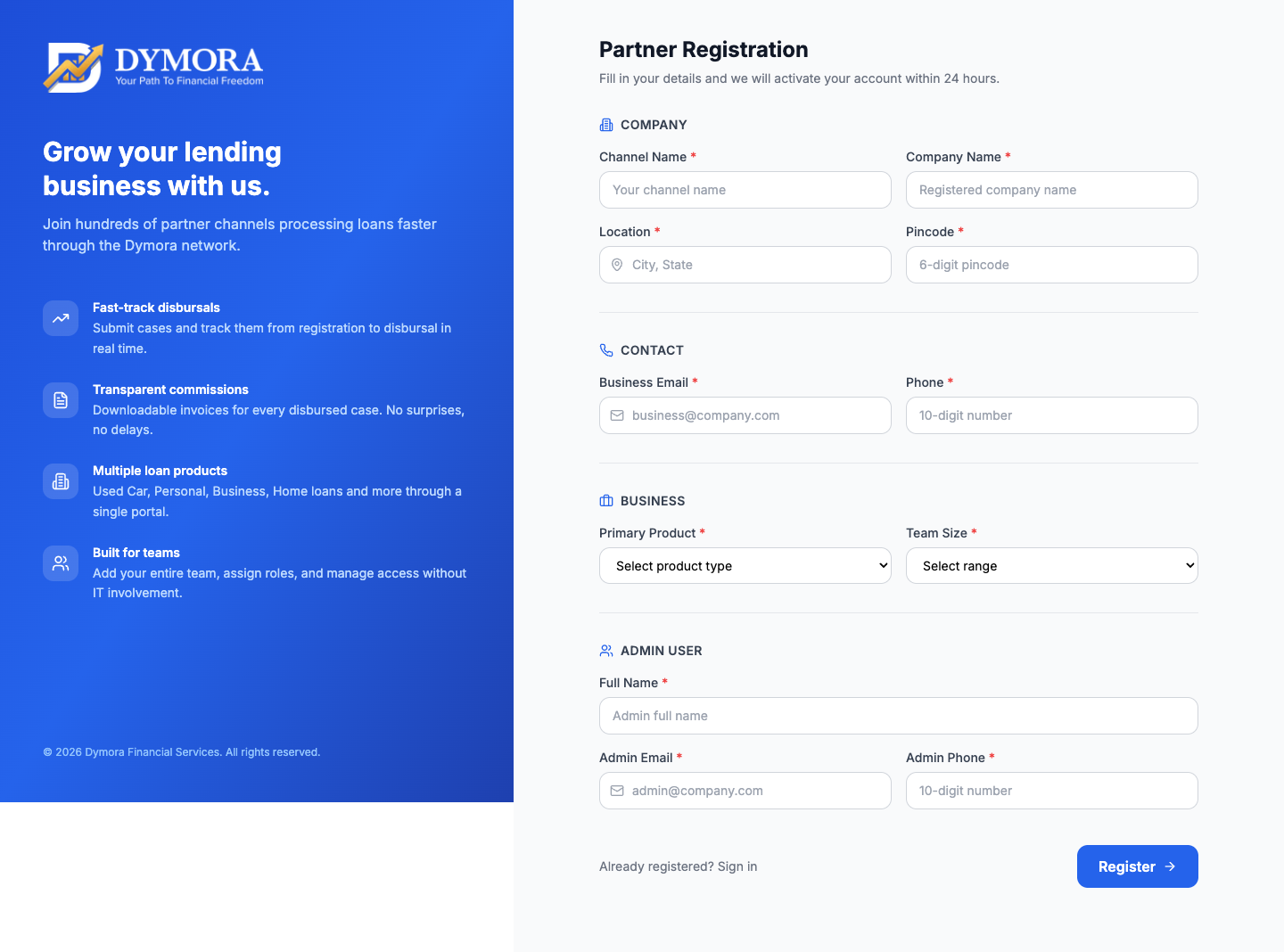
Registration form
What you need
| Section | Fields |
|---|---|
| Company | Channel name, legal company name, location, 6-digit pincode |
| Contact | Business email, 10-digit phone |
| Business | Primary product type, team size range |
| Admin user | Full name, admin email, admin phone |
Product types supported
Used Car Loan, Loan Against Car, Personal Loan, Business Loan, Home Loan, Education Loan.
Step-by-step: Register your channel
- 1Fill every required field (marked with *).
- 2Use a valid admin email - this is your login ID and where setup instructions are sent.
- 3Click Register.
- 4On success, note your Reference ID (format like ABC-MUM-001-1234).
- 5Click Go to Sign In - do not expect immediate full access until password setup and KYC are complete.
After registration
- You receive a Reference ID on screen - save it for support calls.
- Check the admin inbox for a set up your password email (link to /auth/setup-password).
- Account activation and KYC are required before full portal use.